
When your AI coding assistant asks to run find . -name "*.py" | xargs grep "TODO", do you know what's about to happen? This guide covers the commands AI agents use the most and why understanding them keeps you safe, productive, and in control.
What Is Bash, Anyway?
You’ve probably seen it in movies: a hacker furiously typing green text into a black screen. That’s the terminal (more or less). And bash is the language being spoken.
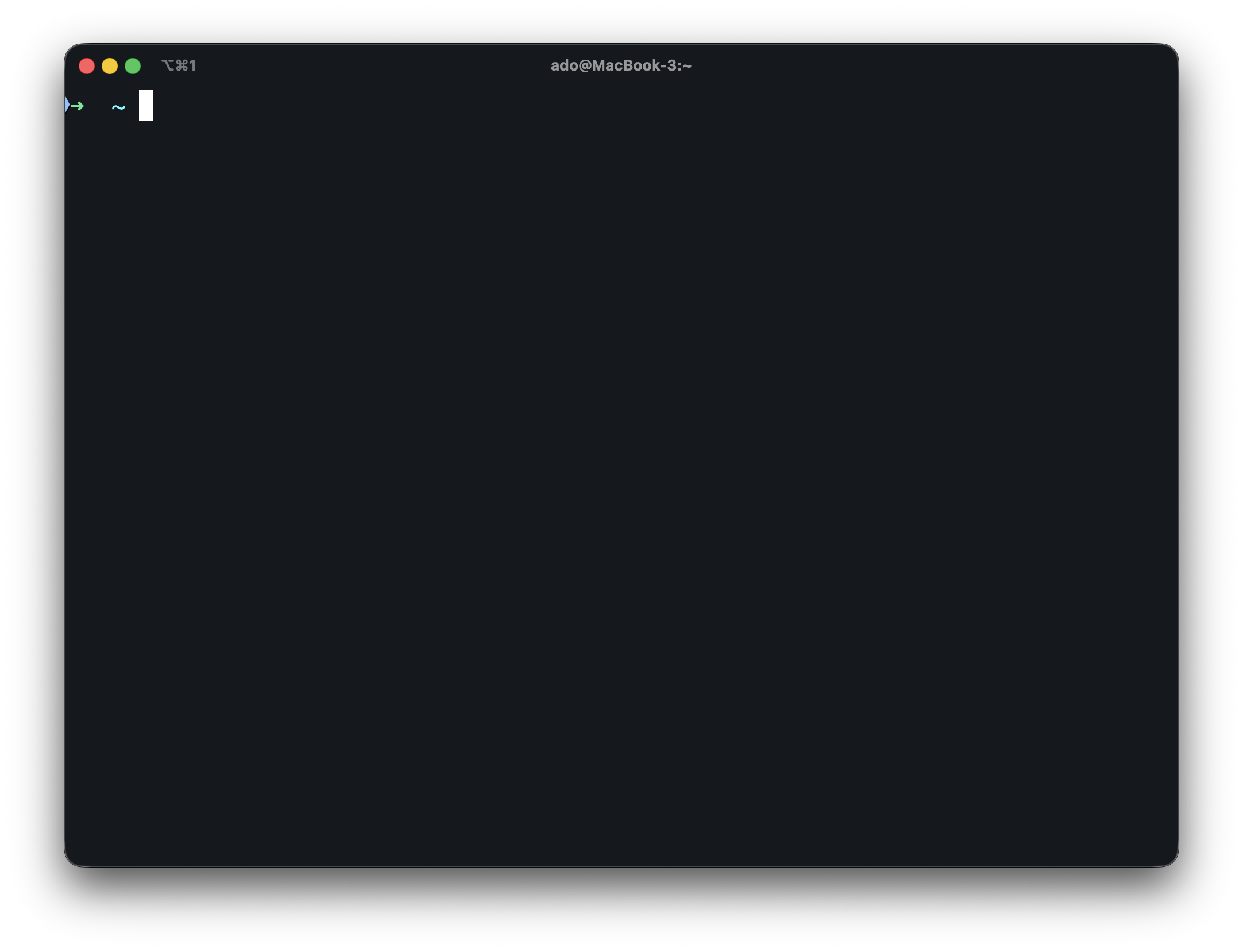
Here’s the simple version:
The terminal is an application on your computer. It’s just a window where you type text commands instead of clicking buttons. On Mac, there’s the built-in Terminal app (though many developers prefer alternatives like iTerm2 or Warp). On Windows, you might use PowerShell or WSL. And tools like VS Code, Cursor, and other IDEs typically have terminals built right in.
Bash stands for “Bourne Again Shell.” It’s the most common language for talking to your computer through the terminal. When you type a command and press Enter, bash interprets what you wrote and makes it happen.
A command is just an instruction.
lsmeans “list files here.”cd Documentsmeans “go into the Documents folder.” We’ll look at various commands in this guide.
Another way to think of it is like this: the apps you normally use (Finder, Photoshop, Google Chrome) are a visual way to interact with your computer. The terminal is a text-based way to do the same things but often faster and more precisely.
Why Does It Look So Intimidating?
Terminals have no guardrails. There’s no “Are you sure?” popup when you delete a file. No undo button. The blinking cursor just waits for you to type something and then does it.
That blankness feels intimidating. But here’s the good news: most commands are simple, and you only need to know a handful to understand what AI tools are doing.
You’re not going to become a bash expert today. You are going to learn enough to read what’s happening and stay in control.
Opening the Terminal
If you’ve never opened a terminal before:
- Mac: Press
Cmd + Space, type “Terminal”, hit Enter - Windows: Search for “PowerShell” or install WSL for a Linux-style terminal
- Linux: Press
Ctrl + Alt + T
You’ll see something like this:
username@computer:~$
That’s bash waiting for you to type something. The $ means you’re a regular user (not an administrator). The ~ means you’re in your home folder.
Try typing ls and pressing Enter. You’ll see a list of files and folders.
Congratulations! You just ran your first bash command.
Built-in Commands vs. Programs
Bash itself only knows a handful of commands. Things like cd (change directory) and echo (print text) are built into bash. But most commands you’ll use like ls, cat, grep, git, npm, python are actually separate programs installed on your computer.
When you type git status, bash doesn’t know what git is. It just finds the git program on your system and runs it with status as an argument. Bash is the messenger.
This is what makes the terminal so powerful. Bash can run many programs:
ls                    # A program that lists files
git status            # A program for version control
npm install           # A program for JavaScript packages
python script.py      # A program that runs Python code
ffmpeg -i video.mp4   # A program for video processing
docker ps             # A program for containers
Every tool you install like Node.js, Python, Docker, AWS CLI, etc. becomes accessible through bash. The terminal isn’t limited to a fixed set of features. It grows with every tool you add.
This is why AI agents love bash. With one interface, they can search files, run tests, manage git, install packages, start servers, and anything else your system can do.
Why This Matters
Every time an AI coding assistant or agent helps you, it’s probably running bash commands behind the scenes. Searching your codebase? Bash. Running tests? Bash. Installing dependencies? Bash. Creating files? Believe it or not, bash.
Most AI tools show you what they’re about to run and wait for your okay. If you don’t understand what you’re approving, you’re flying blind.
Understanding bash gives you three superpowers:
- Safety — You can spot dangerous commands before they run
- Productivity — You can guide AI toward better solutions when it’s stuck
- Debugging — You can fix things when AI commands fail
You don’t need to become a bash expert. You just need to understand the patterns AI agents use most.
The Commands AI Agents Love
Let’s look at what AI coding tools actually run. These usually are not exotic commands, rather they’re the same ones developers use every day.
Navigating and Reading Files
AI agents need to understand your codebase before they can help. These commands are their eyes:
ls                    # List files in current directory
ls -la                # List ALL files (including hidden) with details
cd src/components     # Move into a directory
pwd                   # Print where we currently are
cat README.md         # Display a file's contents
head -n 20 file.py    # Show first 20 lines
tail -n 20 file.py    # Show last 20 lines
Why it matters: When an AI runs ls or cat, it’s just looking around. These are safe, read-only commands.
Searching Your Code
This is where AI agents spend most of their time. They need to find relevant code fast:
# Find files by name
find . -name "*.tsx"              # Find all .tsx files
find . -name "config*"            # Find files starting with "config"

# Search file contents
grep "useState" src/              # Find "useState" in src/ folder
grep -r "TODO" .                  # Search recursively through everything
grep -n "error" app.py            # Show line numbers with matches
Modern AI tools often use ripgrep (rg) instead of grep as it’s typically faster:
rg "function" --type ts           # Search TypeScript files only
rg "API_KEY" --hidden             # Include hidden files in search
Why it matters: Search commands are read-only and safe. But pay attention to what the AI is searching for as it will tell you how it’s thinking about your problem.
Running Your Tools
AI agents run your project’s tooling constantly:
# JavaScript/TypeScript
bun install                       # Install dependencies
bun run build                     # Run build script
bun test                          # Run tests

# Python
pip install requests              # Install a package
python script.py                  # Run a script
pytest tests/                     # Run tests

# Git
git status                        # See what's changed
git diff                          # See actual changes
git add .                         # Stage all changes
git commit -m "Fix bug"           # Commit with message
Why it matters: These commands do things. Installing packages, running code, making commits. Understand what’s being run before approving.
Creating and Modifying Files
When AI needs to change your code:
# Creating
mkdir -p src/utils                # Create directory (and parents)
touch newfile.ts                  # Create empty file

# Moving and copying
mv old.ts new.ts                  # Rename/move a file
cp template.ts newfile.ts         # Copy a file

# Deleting (careful!)
rm file.ts                        # Delete a file
rm -r directory/                  # Delete a directory and contents
rm -rf node_modules/              # Force delete (no confirmation)
Why it matters: File operations change your project. rm deletes permanently and there’s no trash bin in bash.
Chaining Commands Together
AI agents chain commands for efficiency. Here’s how to read them:
# Run sequentially (second runs only if first succeeds)
npm install && npm test

# Pipe output from one command into another
cat file.txt | grep "error"
find . -name "*.js" | head -5

# Run regardless of success
npm test; echo "Done"
The | (pipe) is everywhere. It takes output from one command and feeds it to the next. When you see:
find . -name "*.py" | xargs grep "import"
Read it as: “Find all Python files, then search each one for ‘import’.”
Reading AI Commands Like a Pro
When an AI shows you a command, break it down left to right:
find . -type f -name "*.log" -mtime +7 -delete
Let’s decode this:
find .— Search starting from current directory-type f— Only files (not directories)-name "*.log"— Files ending in .log-mtime +7— Modified more than 7 days ago-delete— Delete them
That’s “delete all .log files older than a week.” Now you can make an informed decision.
Pro tip: If a command looks complex, ask the AI to explain it before running.
When to Say No
Some patterns should make you pause:
rm -rf with variables or wildcards
rm -rf $DIR/*      # What if $DIR is empty or wrong?
rm -rf /           # NEVER run this—deletes everything
sudo for things that shouldn’t need it
sudo rm -rf node_modules # Why does this need sudo?
Unfamiliar flags on dangerous commands
chmod -R 777 . # Makes everything readable and writable
Piping curl to bash
curl https://... | bash # Runs remote code directly
When in doubt, ask the AI what a command does, or just say no and ask for an alternative approach.
When Things Go Wrong
AI commands fail. Here’s what to do:
Read the error message. Bash errors are usually clear:
command not found— The tool isn’t installedPermission denied— You don’t have access (might need different directory or permissions)No such file or directory— Path is wrong
Check the basics:
pwd                 # Am I in the right directory?
ls                  # Does the file/folder exist?
which node          # Is the tool installed?
Share the error with the AI. Copy the full error message and share it with your LLM. AI tools are good at debugging their own failed commands.
Cheat Sheet
| Command | What it does | Risk Level |
|---|---|---|
ls, pwd, cat | Look at files | Safe (read-only) |
find, grep, rg | Search files | Safe (read-only) |
cd | Change directory | Safe (navigation) |
mkdir, touch | Create files/folders | Low (creates things) |
cp, mv | Copy/move files | Medium (modifies filesystem) |
rm | Delete files | Medium (permanent) |
rm -rf | Force delete directory | High (no confirmation) |
npm/pip install | Install packages | Medium (adds dependencies) |
git commit/push | Save/share changes | Medium (affects repo) |
sudo | Run as admin | High (full system access) |
chmod | Change permissions | Medium (security implications) |
Keep Going
You now know enough bash to understand what AI coding tools are doing on your behalf. Hopefully some of the magic has been demystified.
A few parting thoughts:
Start noticing patterns. The next time an AI agent runs a command, try to parse it before approving. You’ll be surprised how quickly the common patterns become familiar and you’ll be able to identify potential failures before burning tokens on them.
Ask questions freely. If an AI suggests a command you don’t understand, ask it to explain. “What does this command do?” is always a valid question. AI tools will usually break it down for you really well.
Mistakes are recoverable (mostly). If you approve something and it goes wrong, don’t panic. Most mistakes can be undone with git, a backup, or just running the right fix. The dangerous commands (rm -rf, sudo) are the exceptions and that’s why we try to avoid them unless absolutley necessary.
You don’t need to go deeper unless you want to. This guide covers most of what you’ll see AI agents run. If you want to learn more advanced bash there is a ton of great content out there. But you don’t need to. Understanding this much already puts you in a great position.
The terminal isn’t magic. It’s just text. And now you can read it.